4 Ensuring Accessibility
In general, any digital content that the university creates, publishes, or shares broadly must be accessible. For details, please see the Accessibility at Illinois website.
This section includes tips for building accessible surveys, divided into sections on accessibility features that can be enabled in Qualtrics and general accessibility considerations to account for when designing your survey. For more information, you can also consult the Qualtrics accessibility documentation.
4.1 Accessibility Features
The most impactful setting in Qualtrics for accessibility is the New Survey Taking Experience, which is enabled by default for all surveys created at the U of I since January 2026. In addition, there are other tweaks you can make to improve accessibility (such as changing the ‘Next’/‘Back’ button text) that will be discussed below.
4.1.1 The New Survey Taking Experience
When you edit a survey that uses the New Experience, it will show a banner at the top of the editor.

Other ways to tell:
- If your survey was created from scratch since January 2026, the answer is yes by default.
- If your survey was created as a copy of a survey made in 2025 or earlier, the answer may be no.
For a full overview, please see the Qualtrics documentation on the New Survey Taking Experience
The New Survey Taking Experience includes several improvements for survey respondents, including:
- Visual signals that emphasize where the respondent is typing and which responses have been chosen.
- Better support for screen readers and keyboard users, especially with matrix questions.
- Clearer indication of questions that force a response (see Section 2.3.1) with an asterisk. (The asterisk is read as “required” by screen readers.)
- Better display on mobile devices.
However, the New Survey Taking Experience does not yet include all features. Specifically,
- A few question types such as Hot Spot and Heat Map are not currently supported.
- If you are using custom Javascript, the
jQuerylibrary must be loaded manually, and some page elements have different names than in the old layout. - The old “Layout” tab no longer appears in the Look and Feel page, but some of the same customization can be found under the “Theme,” “General,” and “Style” tabs.
See the Qualtrics documentation on unsupported features for a full list or instructions for how to disable the New Survey Taking Experience.
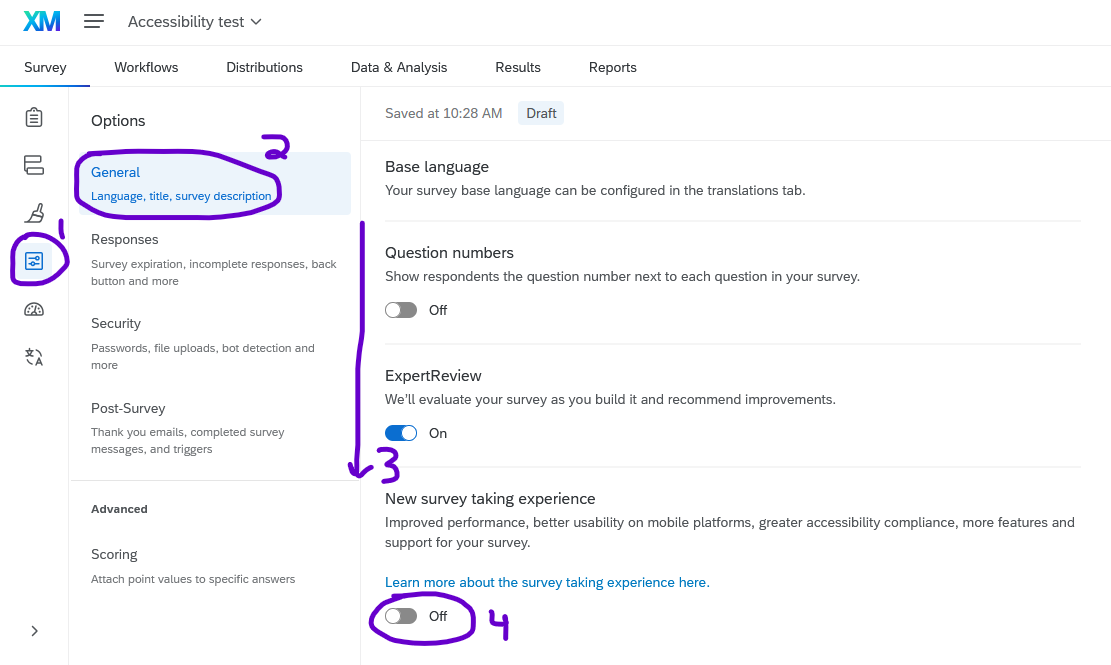
You can enable or disable the New Survey Experience by going to Survey options > General tab > scroll down to the bottom of the list > toggle the slider titled New survey taking experience.
4.1.2 Alternatives to the New Survey Taking Experience
If you choose not or are unable to use the New Survey Taking Experience, you are responsible to make the following accessibility considerations, depending on the types of questions in your survey and your survey audience.
4.1.2.1 Matrix Questions
Matrix questions in the New Survey Taking Experience are generally accessible. In the old survey layout, however, matrix questions were not accessible by default, and needed to be modified.
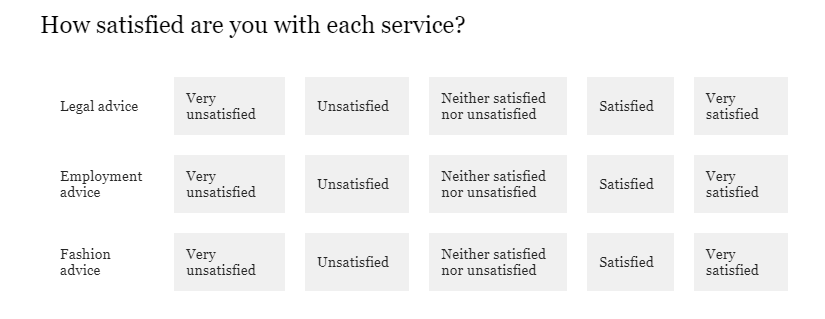
Matrix question accessibility
The problem: Because of how Qualtrics implemented the HTML code, screen readers could not read the column headings, so users wouldn’t know what the scale points are.
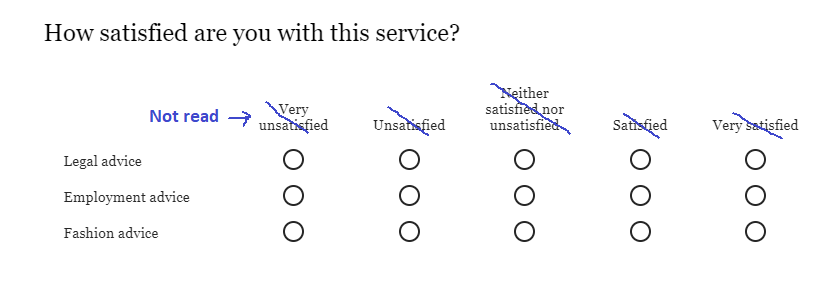
You can make matrix questions accessible by implementing any of the following solutions:
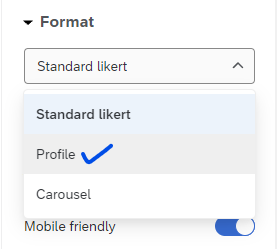
Change the Format to Profile
- After choosing the Matrix type as Likert, type the scale points across the top (i.e. “Very unsatisfied” through “Very satisfied”.)
- In the Question editing pane on the left, scroll down to Format and change from Standard Likert to Profile.
- Once the question is in “Profile” format, you can optionally change the text for any of the items.
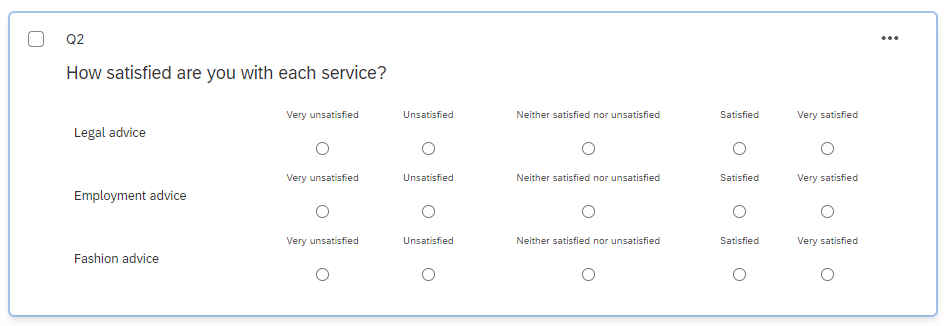
- When respondents see the question, they will see labels on each item, and screen readers will read the content correctly.
Add a bit of JavaScript to your survey heading
- In the Look and feel tab, select General and scroll down to see Header.
- In the Header field, click edit and in the editor, click the Source button to edit the source code.
- Paste the following code, then click Save.
<!-- make matrix questions accessible! -->
<!-- Load jQuery if it's not loaded -->
<script src="https://code.jquery.com/jquery-3.7.1.min.js"
        integrity="sha256-/JqT3SQfawRcv/BIHPThkBvs0OEvtFFmqPF/lYI/Cxo="
        crossorigin="anonymous"></script>
<!-- Fallback to load jQuery if jquery.com is down -->
<script>
    if (typeof jQuery === 'undefined') {
        document.write('<script src="https://cdnjs.cloudflare.com/ajax/libs/jquery/3.7.1/jquery.min.js"><\/script>');
    }
</script>

<!-- Change 'aria-hidden' to 'false' to make the headers accessible -->
<script>
    (function() {
        if (typeof jQuery !== 'undefined') {
            $(document).ready(function() {
                $('.Answers').each(function() {
                    $(this).attr('aria-hidden', 'false');
                });
            });
        } else {
            console.error('jQuery is not loaded. Please check your CDN.');
        }
    })();
</script>Matrix questions must also be “Mobile friendly” to be accessible (which is in the question editing pane); this option is enabled by default.
Whenever you change between question formats, double-check that none of the question text or answer choices have changed. Make corrections as needed.
Other types of matrix questions, including rank order, constant sum, and text entry, are accessible in the old layout by default.
4.1.3 Question Types
Most question types available in the New Survey Taking Experience are accessible by default. Details for a few types of questions are provided below:
- Matrix questions ARE accessible in the New Survey Taking Experience. (They are not accessible by default in the old layout; details are provided in the “Alternatives to the New Survey Taking Experience” section above.)
- Slider questions conform to accessibility requirements, but in some cases a multiple choice or matrix question may be a better choice. Specifically:
- It can be difficult or frustrating for respondents, especially phone users, to accurately select their responses.
- If too large a range is provided, the difference between points may not be meaningful to respondents. In other words, an “8” may not be differentiable from a “7” or “9”, or on a percentage scale, a “70%” may not be perceived as something different from “65%” or “75%”. This lack of meaningful differneces can lead to lower data quality, so you might consider a question with a smaller range or a different question type.
- Graphic slider questions include a slider bar next to a picture, and as the respondent slides the slider, the image changes. They have been disabled for all U of I users because they are not accessible to blind users. (They are also unavailable in the New Survey Taking Experience.) If you are conducting a study that requires them (i.e., working with sighted but non-literate participants), contact us for assistance.
If someone shares a survey with you that contains graphic sliders, you will not be able to copy that survey unless you have permissions individually enabled by a brand or division administrator. To copy the survey, delete the graphic slider question, change it to a different question type, or contact us and we will be happy to help.
4.2 General Accessibility Considerations
While using the New Survey Taking Experience (or the workarounds described above) is an important first step, there are also other options you can enable in Qualtrics to increase the accessibility of your survey:
- When feasible, provide a back button so that respondents can go back and edit their previous responses. (See Section 15.2.1)
- Make sure the back and next buttons have readable text. (See Section 15.1.3.1)
- On the last block of the survey, change the final ‘Next page’ button to say Submit. (See Section 2.4)
- Write questions that are easily understandable.
In addition, creating an accessible survey requires paying some attention to the text and other content of your survey so that all survey takers can perceive, operate, and understand it. The suggestions in this section are consistent with best practices, but at the end of the day, you are responsible for your own survey content. Moreover, in some cases, such as surveying children, researching response times, or studying color perception, some of the standards below may need to be adapted. If you have questions, consult an accessibility specialist on campus.
- Text Size and Contrast: By default, survey text has sufficient size and contrast to be visible to survey takers with low vision. If you change the text color, ensure that it has sufficient contrast by using a contrast checker. If you change the font size, make sure it is large enough to be easily readable.
- Timing and Autoplay: Whenever possible, avoid using auto-advance or other time limits, as they present issues for survey takers with motor or cognitive disabilities. If you include audio or video content, make sure that survey takers can pause, rewind, and fast-forward the content. (For details, see this WebAIM article on time limits.)
4.2.1 Alt Text for Images
If you add images to a survey, it is your responsibility to add alternative text (“alt text”) so that users who cannot see the image can still understand the information that the image conveys.
4.2.1.1 Header Images
The Illinois wordmark included at the top of surveys by default includes alt text.
If you add a custom header image, please use HTML to center it or contact CITL Data Analytics for help.
4.2.1.2 Adding an Image in the Text of a Question
Avoid using the Graphic question type because it does not (currently) allow alt text to be added.
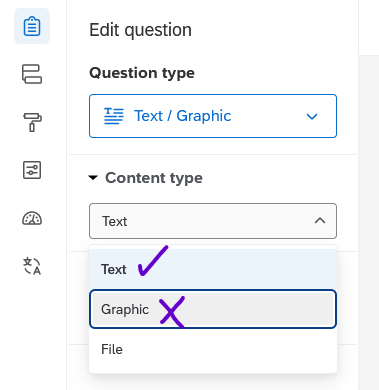
To add an image with alt text to question text, first create a text question and open the rich content editor.
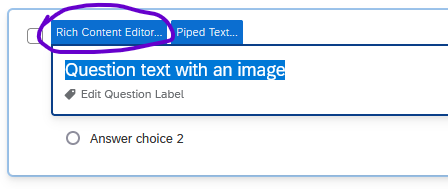
In the rich content editor, add text if you would like, then click the Insert Graphic icon on the top row.
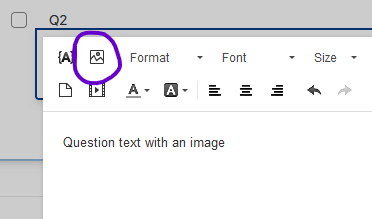
In the popup window, upload an image or choose one from your Qualtrics library.
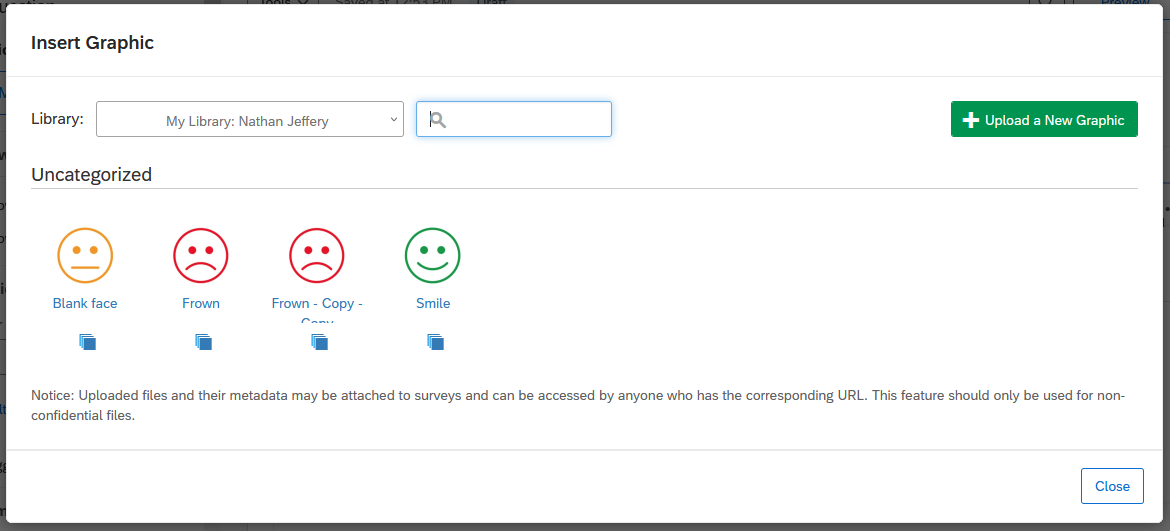
The image will appear inline with any question text, and you can click and drag to change its size or position.
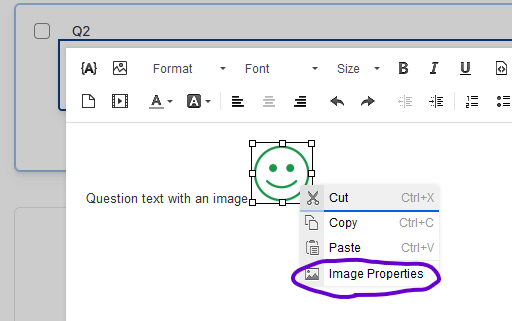
Next, right-click the image and choose Image Properties.
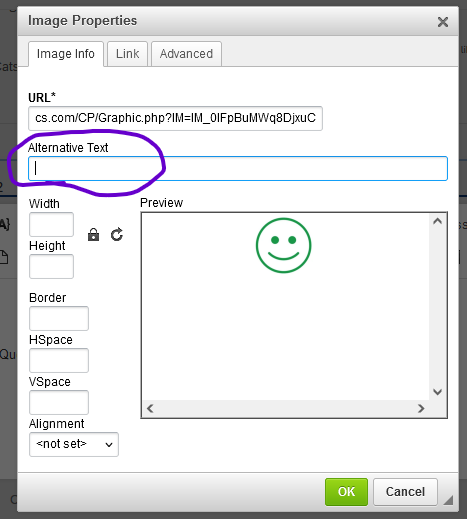
In the Image Properties popup window, type the alt text in the Alternative Text field, then click OK.
For graphs, charts, and other technical images that convey detailed information, alt text may not sufficiently convey the content of the image. In these cases, provide the information from the image in another way, such as by linking to a description hosted externally (such as on cPanel or WordPress), providing a file download, or linking to a file or folder hosted on Box.
Avoid using the Long Description field in the Image Properties window because it has been deprecated.
In general, text is more accessible than an image because text can be zoomed in, read by screen readers, and set to high contrast by the viewer. If you have formatted text (colors, fonts, tables, etc.), it’s generally better to recreate the formatting in the rich content editor (using HTML markup if necessary) rather than taking a screenshot of the text.
4.2.1.3 Adding an Image in the Response Choices
To add an image with alt text to a response choice:
Click the response choice, then click the dropdown arrow that appears to open the menu.
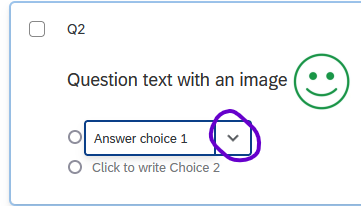
In the dropdown menu, choose Rich Content Editor.
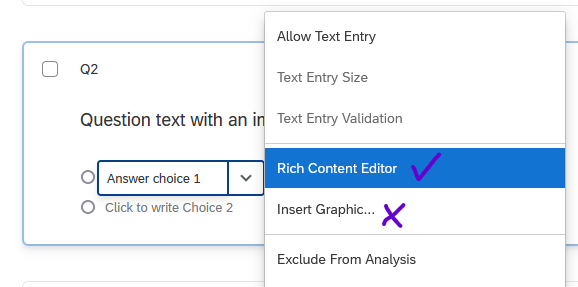
In the rich content editor, insert the image using the steps described above. From this point, the process is the same as inserting an image in question text.
Again, avoid using the Insert Graphic option because it does not (currently) allow alt text to be added.
4.2.1.4 Alt Text Resources
For information about writing good alt text, see these resources: