2 Survey Interface
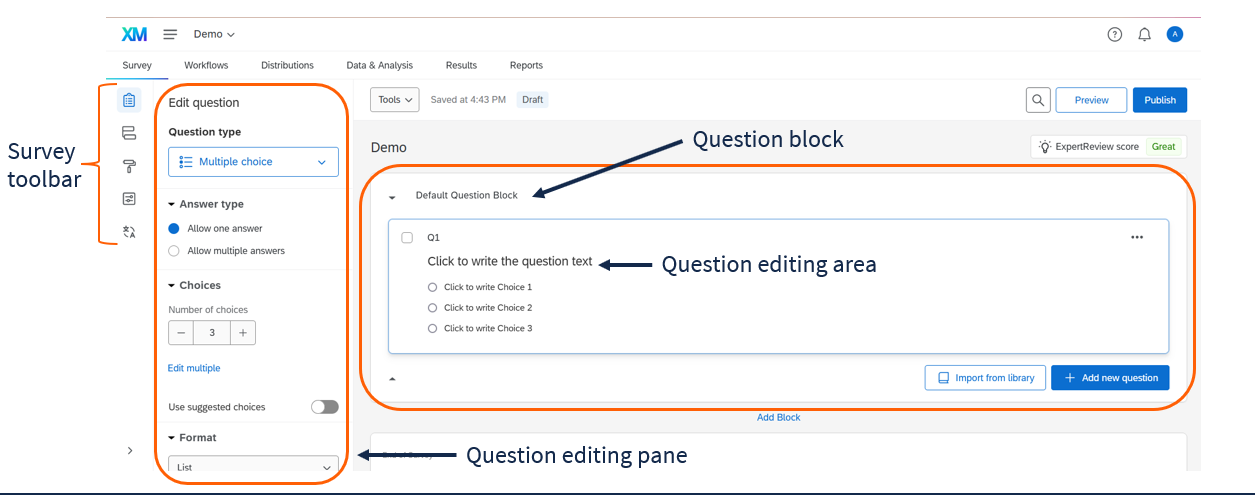
In the main survey builder screen, from left to right you will see the Survey toolbar, the editing pane, and the question editing area.
2.1 Survey toolbar
The Survey toolbar on the far left lets you navigate between several parts of the survey. From top to bottom, the toolbar includes:
| Icon | Name | Description |
|---|---|---|
 |
Survey Builder | Create and edit the questions and blocks in your survey. |
 |
Survey Flow | Control the order and logic of your survey blocks. |
 |
Look & Feel | Customize the appearance of your survey. |
 |
Survey Options | Set survey options including bot detection, survey availability, and more. |
 |
Quotas | Manage quotas for your survey if you want to limit the number of responses from certain groups. |
 |
Translations | Manage translations for your survey if you want to offer it in multiple languages. |
2.2 Question editing area
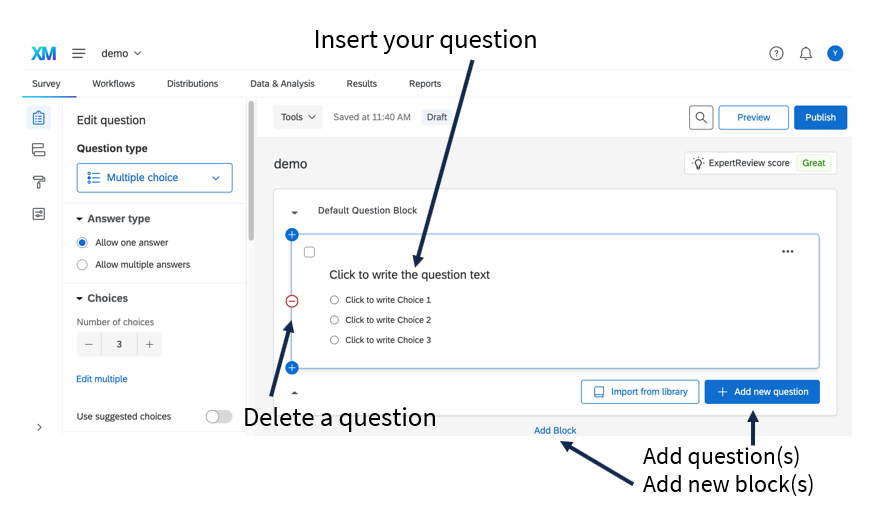
In the question editing area, you can type question text, add/delete new questions and question blocks, and click-and-drag to rearrange questions.
You can use the blue + button to add a new question above or below the current question, or the - button to delete the current question.
2.2.1 Types of questions
Qualtrics provides several types of questions. Here are some of the most common:
Text/Graphic (good for introduction, instructions, and debriefing)
- Note that Text/Graphic is inserted as a “question,” even though it provides no way to answer.
Text entry (good for age, email, state/city)
- The length of the text entry box can be customized from a small box (good for email) to a large essay-sized box (good for feedback).
- Often, it’s useful to add validation to text entry questions; see Section 2.3.2 below for details.
Multiple choice (good for gender and ethnicity)
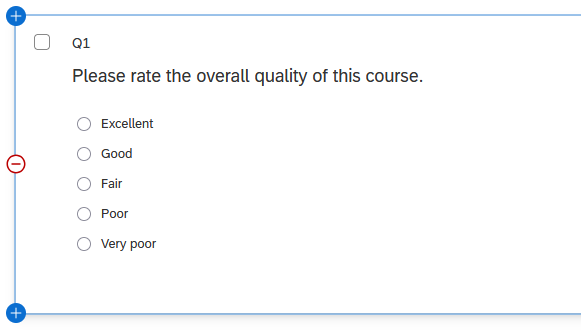
Multiple choice questions are very common. Use one when you’d like each person to provide a single answer.
- Examples: gender, year in school
- Examples: gender, year in school
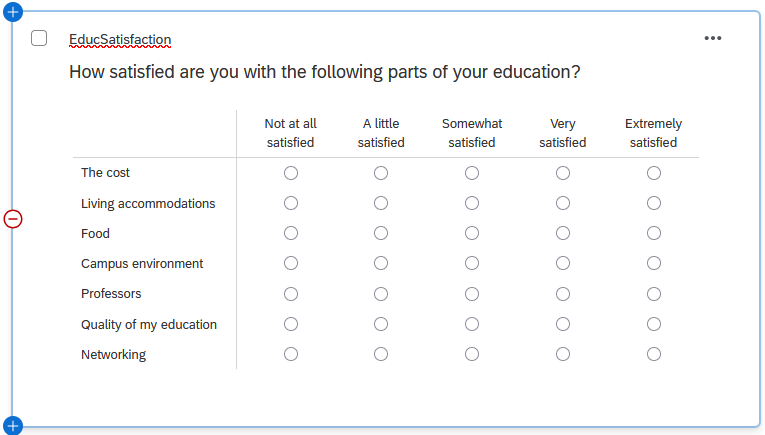
Matrix questions let you ask multiple questions with the same set of answer choices. Consider using one when you have several questions with the same possible answers.
- Examples: Likert scale questions, symptom frequency, mental health screenings
- Matrix questions are accessible by default; see Section 4.1.2.1 for more details./
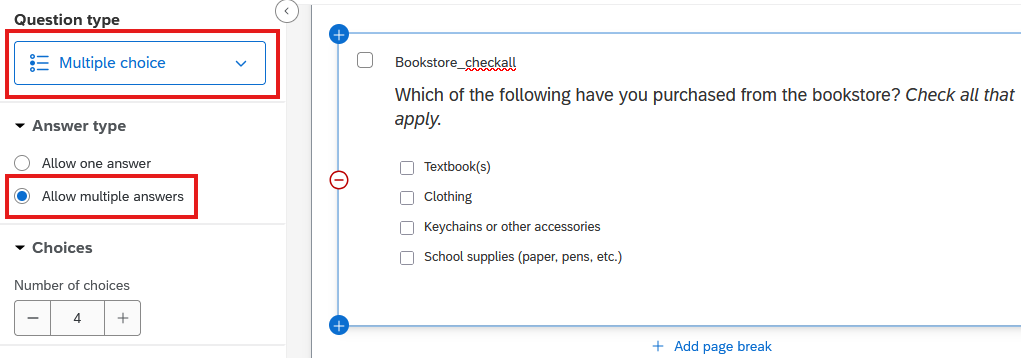
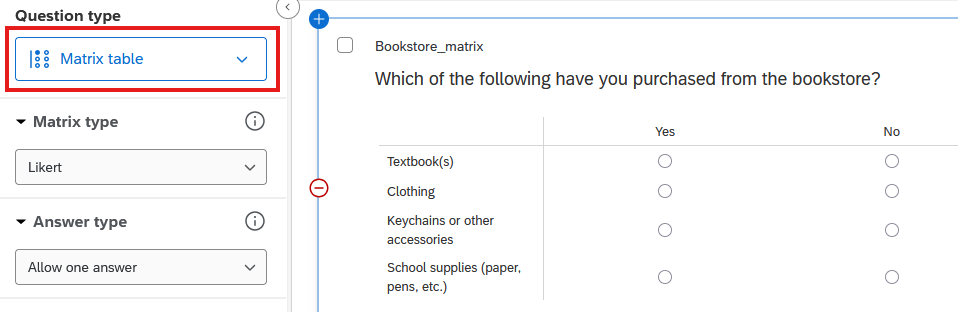
To make a “check all that apply” question, create a Multiple choice question and select the “Allow multiple answers” option. Or, you can use a Matrix question with “Yes” and “No” choices.
- Examples: race/ethnicity, hobbies, preferences
- Examples: race/ethnicity, hobbies, preferences
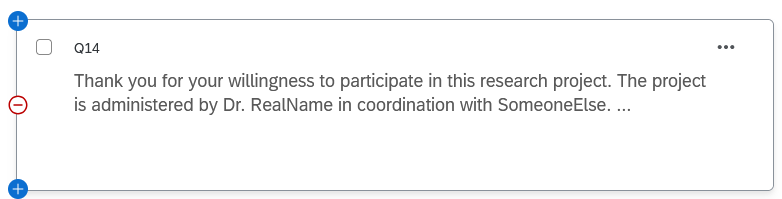
Text/graphic “questions” are a bit of a misnomer – they’re a way to add text to your survey without requiring a response. Use one when you want to provide instructions or information to respondents.
- Examples: informed consent, instructions, debriefing
- Avoid putting a text/graphic question at the end of your survey; use the End of Survey message instead. (Section 2.4)
- To insert an image, create a text/graphic question, choose “text,” then insert the image into the text box. Whenever you insert an image, you’ll need to provide alt text. (See Section 4.2.1.)
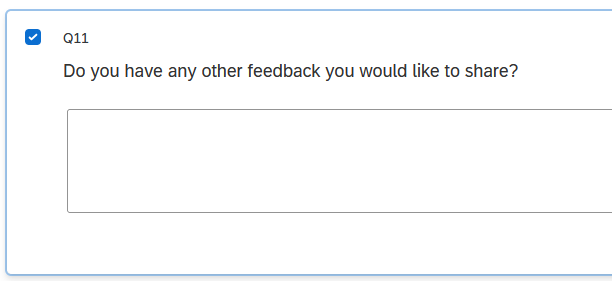
Text entry questions allow respondents to type in their answers. Use one when you want open-ended responses.
- Examples: feedback, comments, suggestions
- Examples: feedback, comments, suggestions
Form field questions are an alternative to text entry questions that are useful for collecting structured data, such as names, addresses, or phone numbers.
- Examples: name, email address, major
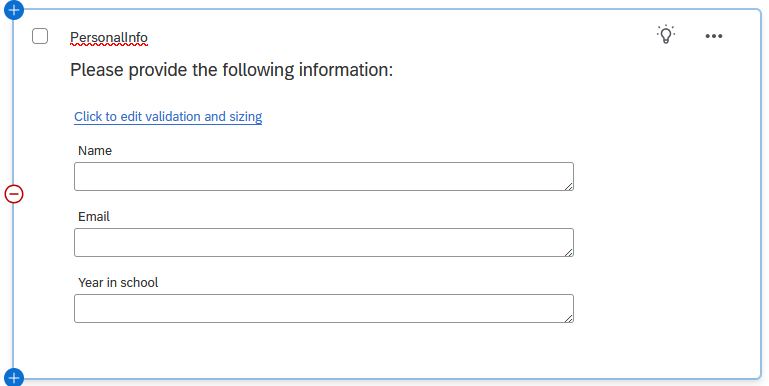
- Examples: name, email address, major
2.2.2 Naming/Numbering your questions
By default, questions are numbered in the order they are created, starting with Q1. As you add or delete questions, the default numbering may not match the order of the questions in the survey – it’s easy to get Q165 in between Q10 and Q43, for example.
It’s possible to rename (or re-number) questions even after people have taken your survey. Renaming questions will affect the column headers in subsequent data downloads but will not change any response data.
Question numbers are not visible to respondents unless you explicitly choose to make them visible in Survey Options.
We recommend renaming your questions using one of the following methods:
2.2.2.1 Add a descriptive name
You can rename a question by clicking on its name (i.e., where it says Q1) and typing another name. This lets you provide descriptive names that will appear throughout Qualtrics and in your downloaded data.
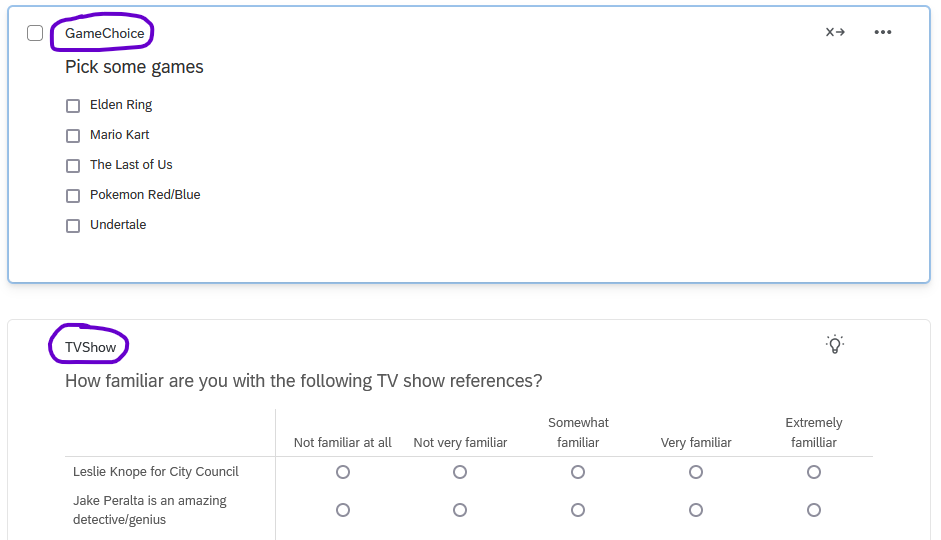
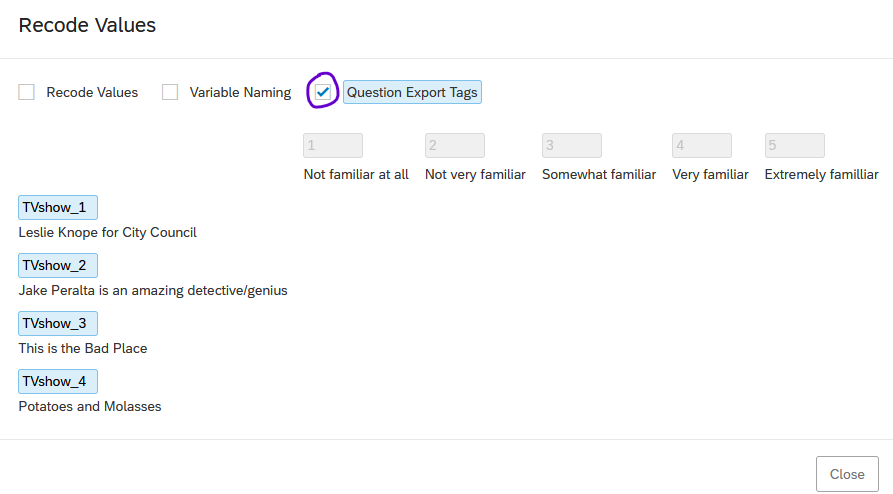
For matrix questions, after you rename the question, you can also rename the way each statement is exported. (By default, Qualtrics appends numbers to each statement starting with _1)
To do so, open the Recode Values pop-up in the question editing pane, then click the Question Export Tags checkbox and edit the variable names as desired.
2.2.2.2 Auto-numbering
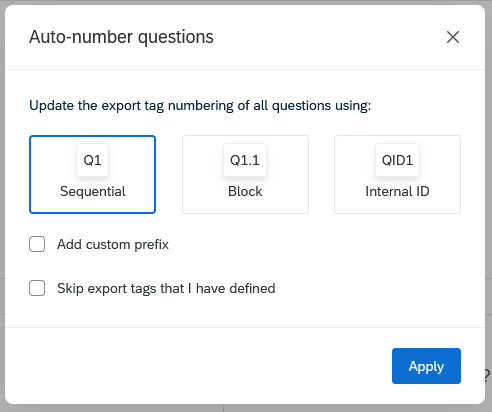
If you want to number the questions sequentially (e.g., Q1, Q2, Q3), you can renumber them in bulk by going to the Tools menu and choosing Auto-number questions.
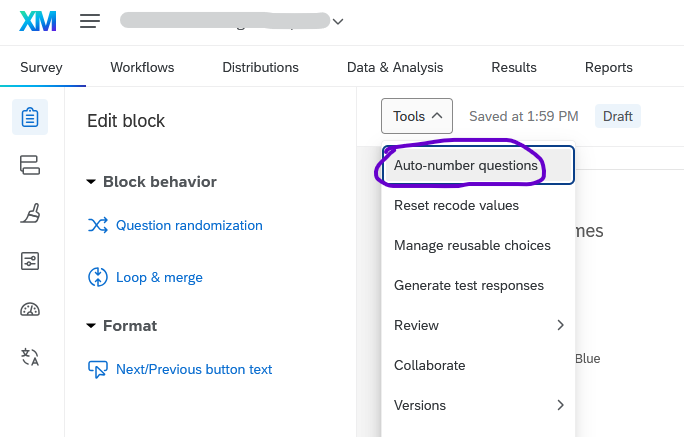
Then, in the pop-up dialog, choose how you’d like to number the questions, then click Apply.
2.2.3 Blocks
In Qualtrics, questions are arranged into blocks. In the question editing area, blocks are arranged vertically, but the order in which they appear to respondents can be rearranged using the Survey Flow interface (see Chapter 3).
A simple survey (e.g., event registration, informal feedback) might contain only one block, while a more complex survey might contain many blocks. If you’re conducting a survey experiment, you can create different blocks for each experimental condition and use Branch Logic (Section 3.2.1) to control which respondents see which blocks.
2.3 Editing pane (i.e., the sidebar on the left where you configure question options)
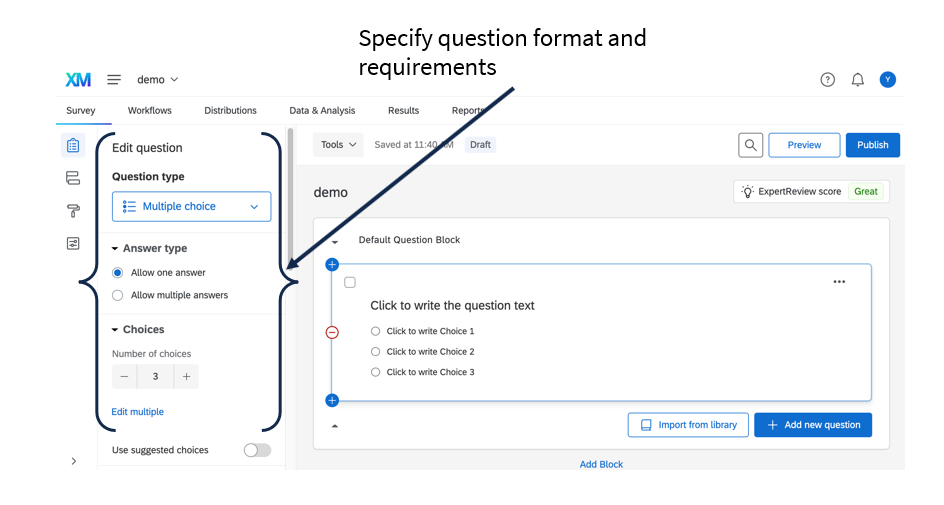
The editing pane changes depending on the question or block you select. Generally, it lets you set several options, including:
- The question type (e.g., multiple choice, text entry, etc.)
- How many answer choices are available
- Recode values (important for multiple choice questions; see Section 2.3.3 below)
- Whether the question is forced/required (Section 2.3.1)
- Whether the question should be shown based on certain criteria (Section 2.5)
- JavaScript, if you want to customize your question beyond the built-in options (Section 17.5)
2.3.1 Forced response
To force respondents to answer a question, click on the question, then in the editing pane, scroll to “Response requirements,” and choose Add requirements.
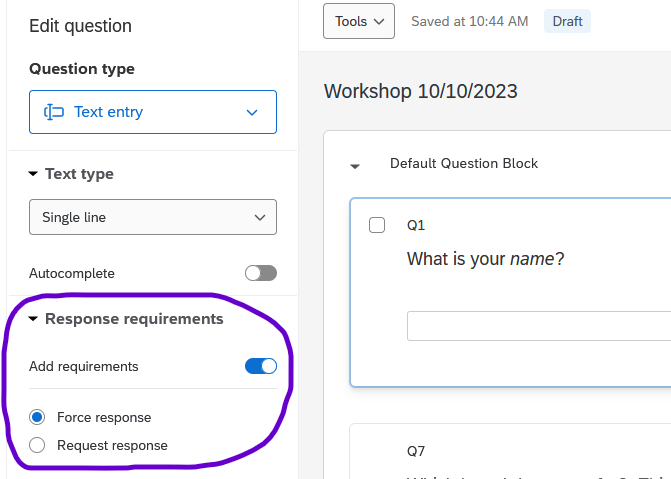
The default option is Force response, which does not allow respondents to proceed without answering the question. This can be useful for consent forms, contact forms, and information request forms. For survey research, we generally recommend NOT requiring response to any question except the consent form. Contact us and/or consult your department to determine best practices for your specific case. (See also: Qualtrics guidance on forced response)
Forcing a response can be problematic when respondents do not know how to answer a question – they are forced to pick the “best looking” option (called “satisficing”), which hurts your data quality, or they may quit the survey altogether.
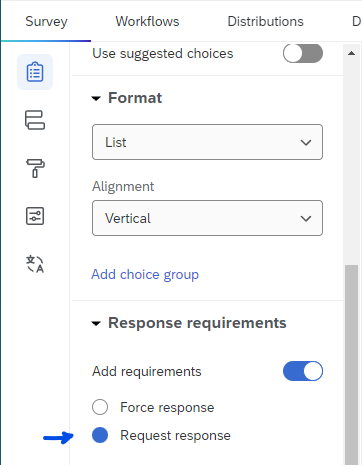
Instead of a forced response, consider the Request response option, which notifies respondents if they attempt to move on without answering the question, but after the notification, they can still choose not to respond.
2.3.2 Response validation
When you provide a text box and ask for a specific type of information (e.g., an email address, phone number, age, state, postal code), you can enable content validation to check that answers are valid. This can save you time and reduce errors as opposed to manually cleaning the data later.
To enable content validation for a text question, click on the question, then under “Response requirements,” choose Add validation. For most validation, select Content type from the dropdown menu, then choose the type of content (e.g., “Email address”). (See the Qualtrics documentation on content validation)
For more complex validation, you can use custom rules by choosing the Custom option.
For ‘age’ questions, you can set the Content type to Number, and then specify a range (e.g., Minimum: 0, Maximum: 100), with Maximum decimals: 0. (Maximum decimals of 0 keeps someone from typing e.g. 23.5)
If you set the minimum age at 18, underage participants would see an error and have an opportunity to re-enter (or lie about) their age before they proceed. Instead, you could set the question to accept any number as a valid age, and then use skip logic or branch logic to end the survey for underage participants, optionally with a customized message that says something like, “Thanks but you are not eligible to participate.”
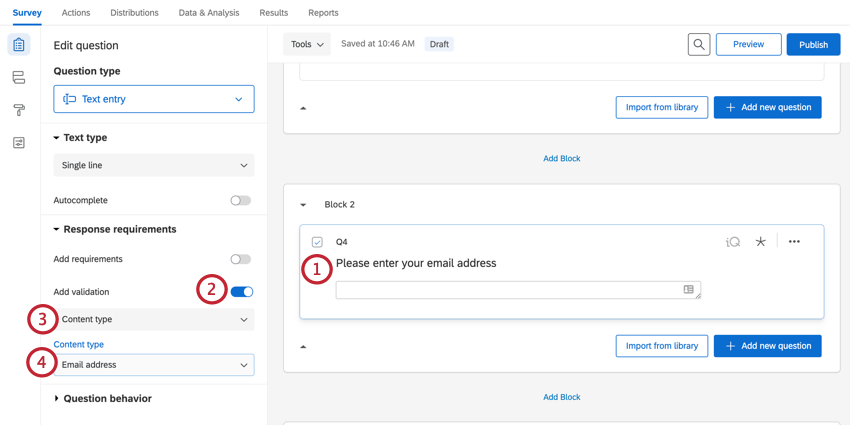
Different question types offer different validation options. Text entry questions, for example, will only validate email addresses if the type of text entry is set to “Single line.”
A text entry question is the simplest way to ask respondents to enter a date; in our experience, it works better than the new Calendar question type. See Section 17.4 for more details.
2.3.3 Recode Values
For multiple choice questions, Qualtrics assigns a numeric value to each text option (the label), and you can choose whether to download the values or the labels.
However, Qualtrics numbers the options (starting with 1) based on the order that they’re created. This means that if you reorder or delete answer choices, the numbers will probably not match what you expect. To see or change the values, you can click Recode Values in the question editing pane.
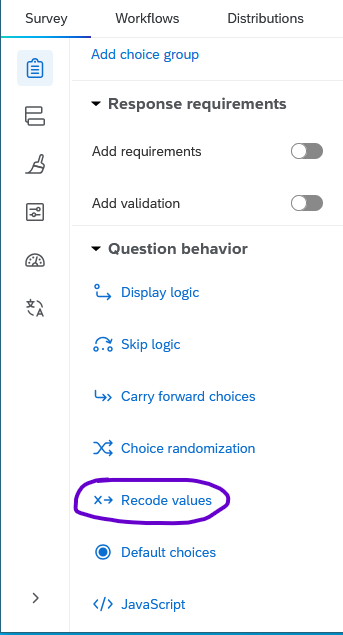
The values will display next to the choices. Sometimes, you may be surprised!
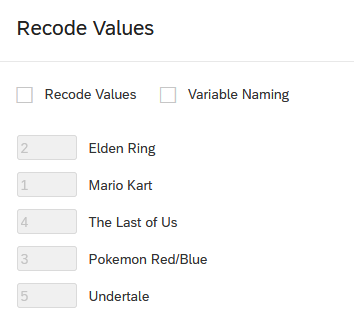
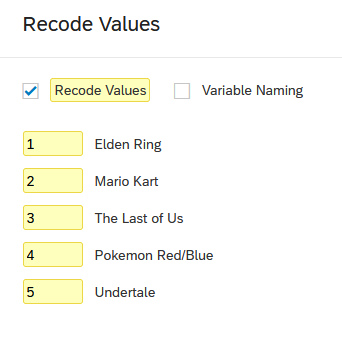
To renumber the choices, check the Recode Values box at the top. Edit the choices as desired, then click Save.
After a question’s values have been recoded, a small icon will appear to its right.
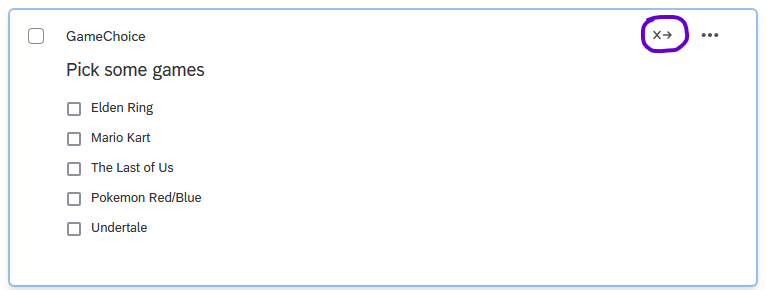
It’s possible to recode values before or after people have taken your survey. Changing the recode values will affect all subsequent data exports, which can make your data cleaning and analysis processes easier, but may also require you to revise any codebooks or scripts you created before the recode.
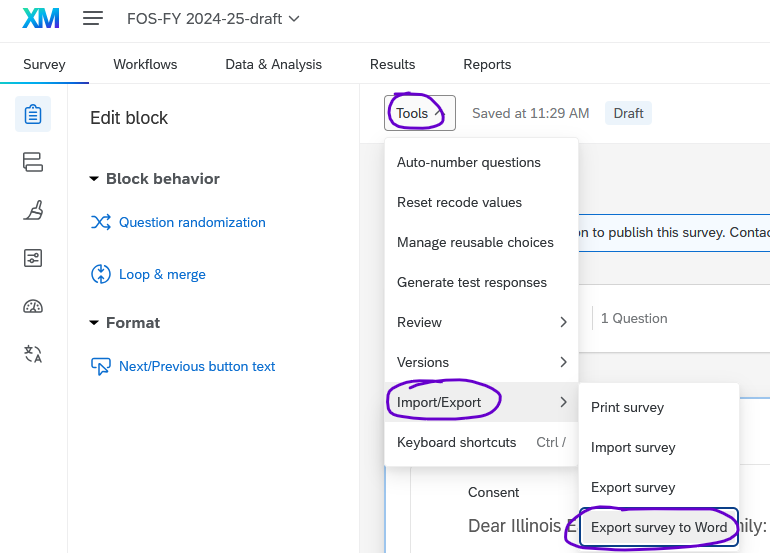
To see the recode values for all questions in your survey, you can export the survey as a Word document by going to the Tools menu > Import/Export > Export survey to Word.
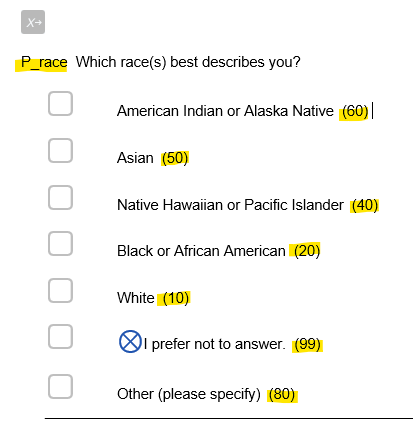
The Word document will show the question number or variable name for each question (highlighted yellow in the screenshot below) followed by the question text. Answer choices will be shown with their recoded values (also highlighted yellow).
2.4 End of Survey
It can be difficult for respondents to anticipate the end of your survey, which means that respondents who skip ahead to “see how long the survey is” may inadvertently submit a blank response, or that respondents who wish to go back to double-check their answers may not be able to do so.
We recommend two strategies to clearly label the end of your survey: changing the “Next page” button text and using the End of Survey message instead of a text/graphic question.
2.4.2 Use the End of Survey message
If the last page of the survey contains a block of text (e.g., something like “Thank you for participating in my research project”), respondents may think they are done with the survey and never click the final “Submit” button. To avoid this confusion, move your text into the End of Survey message.
- Click on the End of Survey message that appears below the final block. (By default, it says “We thank you for your time spent taking this survey. / Your response has been recorded.”)
- In the editing pane, click the “End of survey message” dropdown and select Custom.
- A new dropdown menu will appear that says “Load a saved message.” Click it, then under My Library, choose New Message. (If you have previously saved messages, you can also select one of those. )
- In the editor, provide a Description (i.e., a note to yourself about what this message is for) and enter the message text you want respondents to see at the end of the survey. Then click Save.
To edit an end-of-survey message that you wrote previously, go to your Library, click on the message, then click Edit in the bottom-right corner.
To make custom end-of-survey messages for specific groups of people, see Section 3.2.2.
2.5 Survey Logic
Logic is used in surveys to customize respondents’ experiences. Most often, logic is used so that respondents only see questions that are relevant to them, but it can also be used to trigger other behaviors in the survey. There are several Qualtrics features that use logic:
- Logic can be attached to specific questions.
- Display Logic lets you show specific questions and/or answer choices based on respondents’ answers to previous questions.
- Skip Logic lets you jump respondents to a point further forward in the survey based on their responses to previous questions.
- Carry Forward Choices lets you populate future questions with answer choices from previous questions.
- Logic can also be used in question blocks.
- Branch Logic lets you show different blocks of questions depending on specific conditions (see Chapter 3).
Because different types of logic are implemented in different parts of the survey interface, the end of this section includes a cheat sheet (Section 2.5.3).
For a more complete explanation, see the Qualtrics documentation on Survey Logic
2.5.1 Display Logic
Display Logic is primarily used to show specific questions and answer options based on respondents’ answers to previous questions. For example, a survey about students may ask respondents to mark whether they are an undergrad or grad student, and respondents who mark “Grad” will see a follow-up question asking where they completed their undergrad degree.
Display logic works very well for one or two questions, but it is not the most efficient way to hide large numbers of questions. In this example, for a survey that contains several questions for grad students, it would be better to use skip logic or branch logic.
If you want the question to show up directly underneath the filter question, select the “In Page” option. Otherwise, Display logic will add a page break. However, in-page display logic can only be used with some types of questions.
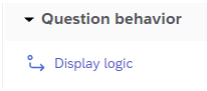
To implement Display logic, select the question that should be conditionally displayed (e.g., the follow-up question, not the initial question). In the editing pane, scroll to the “Question behavior” section and choose Display Logic.
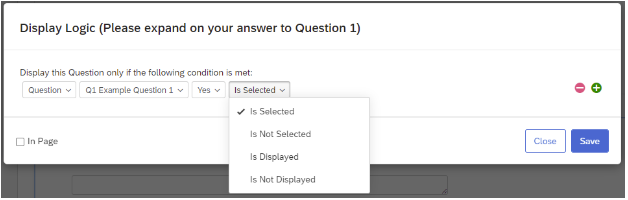
Next, select the relevant options from the Display Logic interface. You can use the green plus button to add multiple logic conditions, and the red minus button to remove conditions. When you’re finished, click Save.
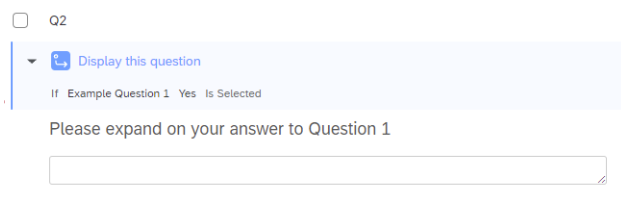
 If implemented correctly, a flag will appear on the question indicating that Display Logic is in use and what that logic is.
For more details, see the Qualtrics Documentation on display logic.
2.5.2 Skip Logic
Skip Logic is used to conditionally jump respondents to a point further forward in the survey based on their responses to previous questions. Skip logic lets you move respondents to questions later in the same block, to the end of the block, or to the end of the survey, but it does not let you move respondents to a specific point within a subsequent block.
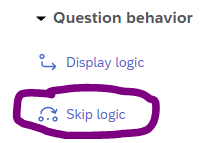
To implement Skip logic, select the question that triggers the skip (e.g., the question that determines whether they should skip). In the editing pane, scroll to the “Question behavior” section and choose Skip Logic.
Next, select the relevant options from the Skip Logic interface and save.
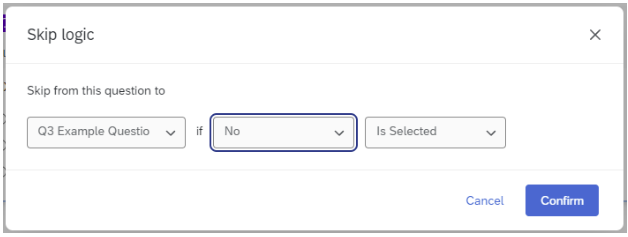
In order to skip to a later question in the same block, there must be at least 2 questions after the question that triggers the skip logic – one question to be skipped, and one question to be the destination.
If implemented correctly, a flag will then appear on the trigger question indicating that Skip logic is in use and what that logic is.
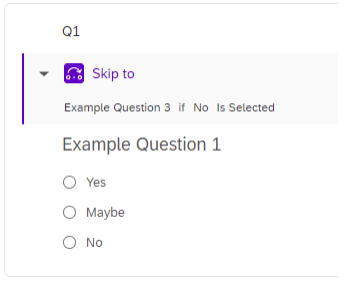
Similarly, a flag will appear on the destination question indicating that Skip Logic is in use and where the skip originated.
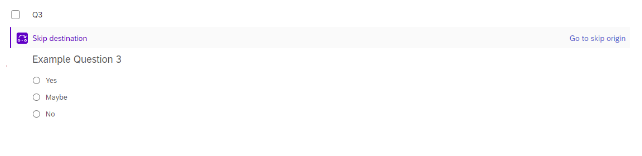
For more details, see the Qualtrics documentation on skip logic.
2.5.3 Cheat Sheet
| Type | Purpose | Where to implement |
|---|---|---|
| Display Logic | Show a question or answer option based on answers to a previous question | In the question that should be conditionally displayed |
| Skip Logic | Skip to another question within the same block, the end of the block, or the end of the survey | In the question that triggers the skip |
| Carry Forward Choices | Pipe previous answers as possible responses in later questions | In the question into which the choices should be carried |
| Branch Logic | Show or hide an entire block of questions | In the Survey Flow interface |