1 Getting Started
1.1 Accessing Qualtrics
To log in to Qualtrics, go to illinois.qualtrics.com and sign in with your Illinois NetID and password.
Qualtrics accounts are domain-specific, which means that logging in at a different URL will log you into a different account.
- If you log in at illinois.qualtrics.com, you’ll be logged into an Illinois Qualtrics account.
- If you try to log in at qualtrics.com it will create a free (non-Illinois) account.
- If you try to use illinoislas.yul1.qualtrics.com or another deprecated Illinois college-specific account, it will return an error saying the account is disabled.
If you have multiple accounts, surveys and data are NOT shared between them. Contact us if you’d like help moving surveys between accounts.
1.2 Create a Project
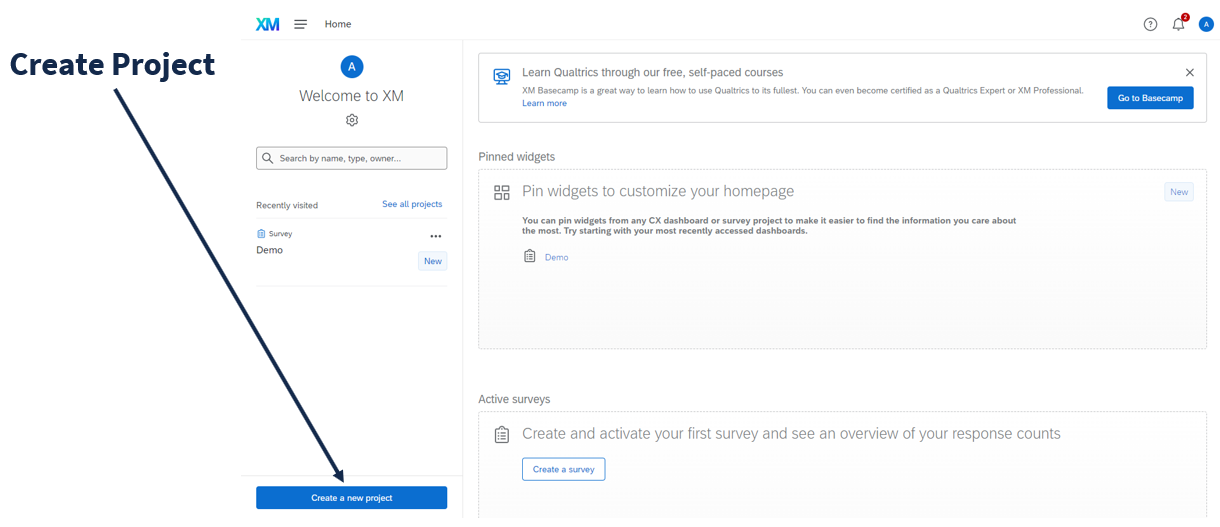
After logging into Qualtrics, you will see all of your current surveys under the Recently visited and See all projects tabs. (Qualtrics refers to surveys as “projects.”) Click Create a new project on the bottom left corner on the home page.
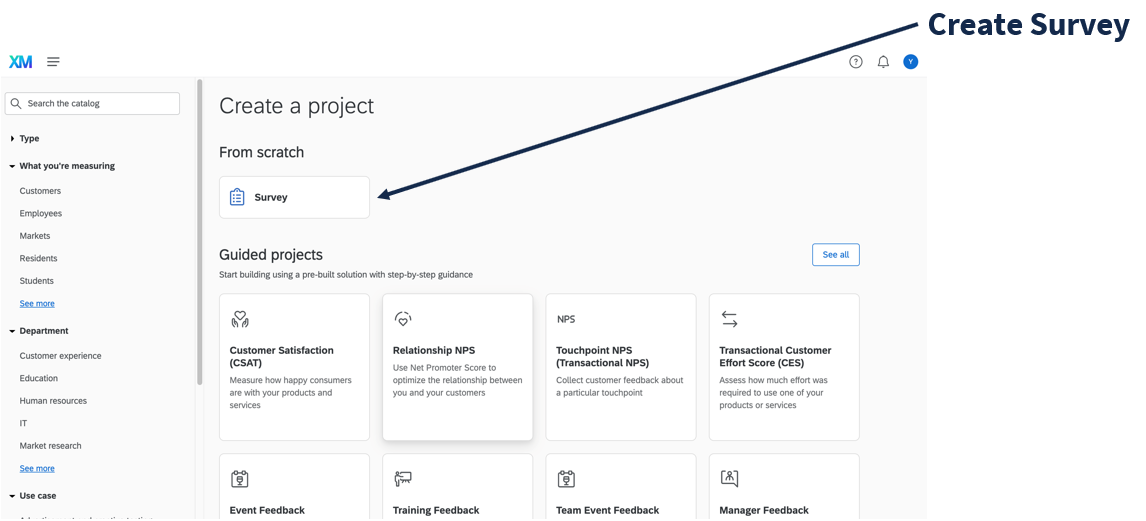
To create a new, blank survey, select “Survey” under the “From scratch” heading.
“Imported Data” projects are used to analyze data that you collected elsewhere (i.e., similar to how you would use Excel or SPSS).
Imported data projects cannot currently be combined with survey projects, so if you’re trying to merge external data with survey results, use a different program (i.e., Excel, SPSS, or R).
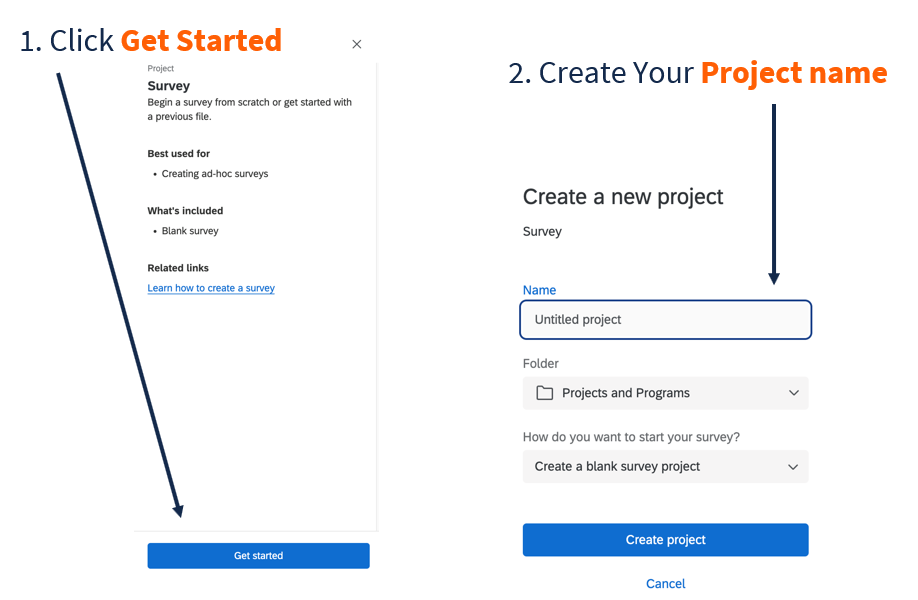
Then, click Get started, name the project, and click Create project.