3 Survey Flow
This section is about the Survey Flow section of the Survey Builder tab of Qualtrics. It describes the Survey Flow generally, then walks through a few common examples.
3.1 What is Survey Flow?
The Survey Flow lets you customize how respondents ‘flow’ through the survey, or in other words, what happens between the beginning and the end. It can include blocks of questions (see Section 2.2.3) as well as logic, authenticators, and other elements. You can use survey flow to display blocks in a particular order, to make certain blocks of questions conditionally available to certain respondents, or to end the survey early for a particular group or once a quota is met. You can include multiple Survey Flow elements in a single survey, and you can rearrange them as needed.
3.1.1 Who Should Use Survey Flow?
If your survey is simple, you can skip this chapter! However, survey flow is useful in the following cases:
- If your survey is going to U of I students, faculty, and/or staff, and you need them to authenticate with their NetID before accessing it (see Section 3.3 below)
- If you need to exclude certain demographics (e.g., respondents under age 18, students located in GDPR/PIPL countries, etc.)
- If you’re doing a survey experiment where certain blocks of questions should be shown to certain respondents.
- If you need to assign random numbers or identifiers to respondents.
- If you need to record extra variables in your dataset (called Embedded Data) - such as participant groups, the URL they used to access the survey, or other information.
3.1.2 Editing the Survey Flow
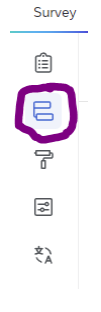
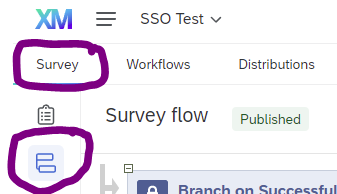
To utilize Survey flow elements, select the Survey Flow icon in the left-hand survey toolbar.
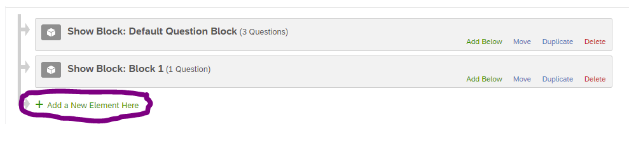
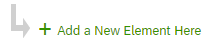
Select Add a New Element Here.
This will bring up a selector where you can choose an element to add.
3.2 Survey Flow Elements
There are many elements you can choose, including (in the order they appear on the page):
- Blocks of questions (see Section 2.2.3)
- Branch (see Section 3.2.1 below): lets you show different blocks of questions based on specific conditions
- Embedded Data (see Section 17.3): lets you record additional information about respondents
- Randomizer: lets you randomly assign respondents to different blocks or conditions; useful in survey experiments
- Web Service: used less commonly; lets you perform HTTP requests to retrieve external information from the internet
- Supplemental data: used less commonly and has campus-level restrictions; contact us for more information
- Group: if your survey flow gets cluttered or has many elements, you can group them together for better organization
- Authenticator: lets you restrict access to your survey using a contact list or SSO; see Section 3.3 below
- End of Survey: lets you end the survey for certain respondents and optionally display a custom message; used well in conjunction with Branches (see Section 3.2.2)
- Reference Survey: lets you include questions from another survey within your current survey
- Table of Contents: lets you add a table of contents to your survey for easier navigation
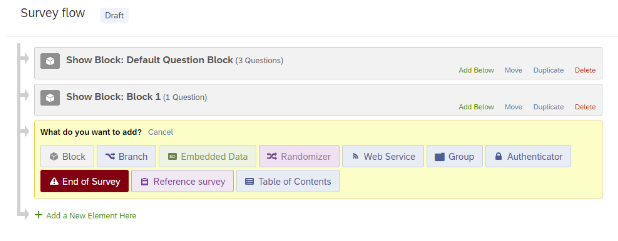
For additional details, see the Qualtrics documentation on survey flow
Instructions for a few commmonly used Survey Flow elements follow.
3.2.1 Branch Logic
Branch logic is used to add conditional logic, such as displaying blocks of questions depending on specific criteria. Branches can be triggered by participants’ responses to previous questions or by embedded data (see Section 17.3). Branches can contain multiple elements and can be nested within other branches.
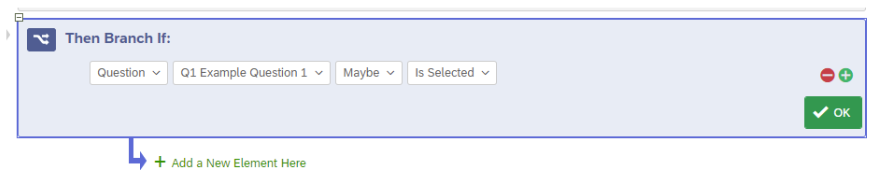
To implement branch logic, go to Survey Flow, add a new element, and select the Branch element.

You will then be prompted to Add a Condition.

Chose the relevant question or other condition and select OK.
Finally, to move blocks or other elements under the branch logic, click and drag the elements where they say Move.
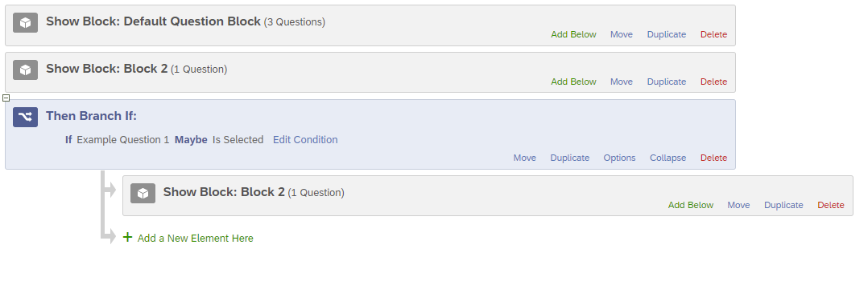
For additional details, see the Qualtrics documentation on branch logic.
3.2.2 Custom End of Survey
You can customize the End of Survey page for all respondents to your survey, or you can use Branch Logic to customize the End of Survey for certain groups of respondents (see Section 3.2.1 above).
You can also change the End of Survey message in the Survey Editor. However, editing it here in the Survey Flow provides options that don’t appear in the Survey Editor, such as being able to redirect respondents to another survey or website automatically.
In the Survey Flow, add a new element below the last block of the survey or desired branch, and select the End of Survey element.
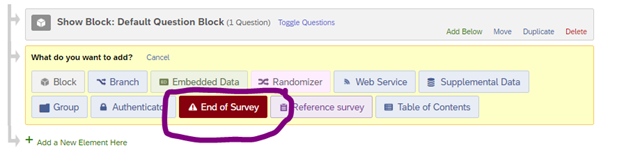
Select Customize.

You will now see a dialog box that likely indicates that the element is using the “Default end of survey message.”
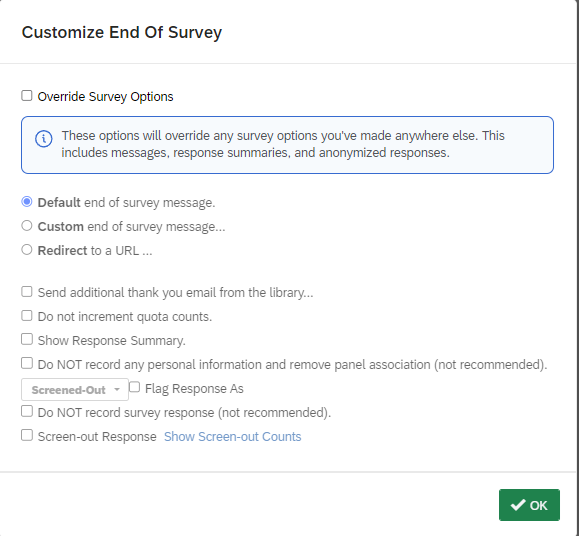
To change the options, you’ll first need to check Override Survey Options at the top.
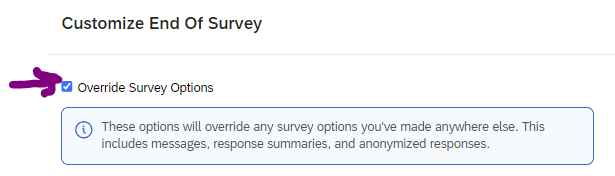
Now you can edit the options. For this example, we’ll continue by customizing the End of Survey message, but you could also choose to redirect the participant to a URL or another option.

You will be prompted to Select a message. If you have previously created a custom message, or are a member of a Qualtrics group that has shared messages, you can select one here from either “My Library” or a “Group Library.” Otherwise, you can create a New Message in your own library.
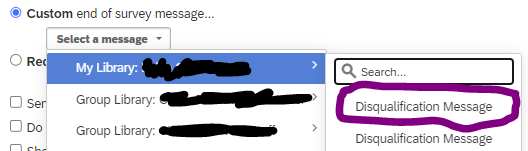
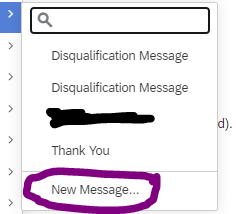
See Section 14.4.2 for details about group libraries. For access to a Group Library, contact your Qualtrics division administrator (in your college) or brand administrator (CITL Data Analytics).
You will now be prompted to create the content of your new message. Name your new message in the description box and write and format the message in the text field.
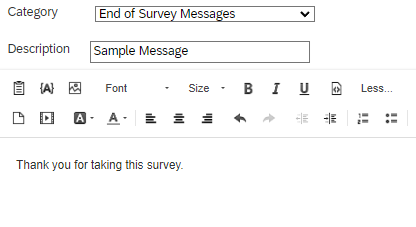
If you would like to show your respondents answers from their own surveys, you can use the Insert Piped Text option (see Section 17.1).
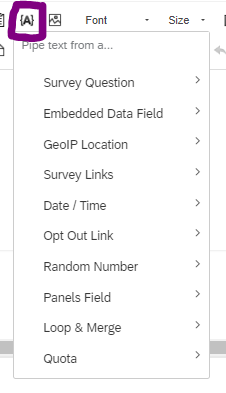
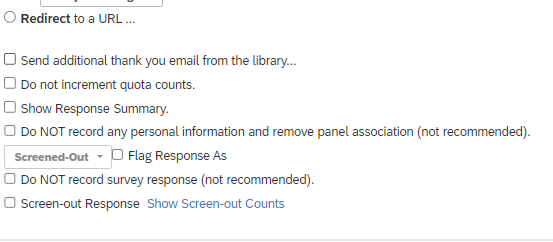
Once you have finished editing your message, select Save and you will be returned to the “Customize End Of Survey” dialog window. Here you can make other customizations such as showing respondents their own Response Summaries, though these options are less likely to be relevant to most users.
Select OK to finish the customization process.
You should now see a small check mark next to the Customize button on the End of Survey Element in the Survey Flow view.

If you will be using separate End of Survey messages for different Branches, repeat the process for each Branch. Then select Apply at the bottom of the screen to apply the changes to your survey.
If you make changes to a previously published survey, you will need to publish these changes in order for them to take effect.
3.3 Authentication
Qualtrics surveys can incorporate Single-Sign-On (SSO) authentication as a way of adding identifying information to responses or as a condition for survey logic (Section 2.5 discusses survey logic).
To Enable SSO Authentication on Your Survey
Go to the Survey and click the Survey flow interface.
Select “Add a New Element Here.”
Choose “Authenticator.”

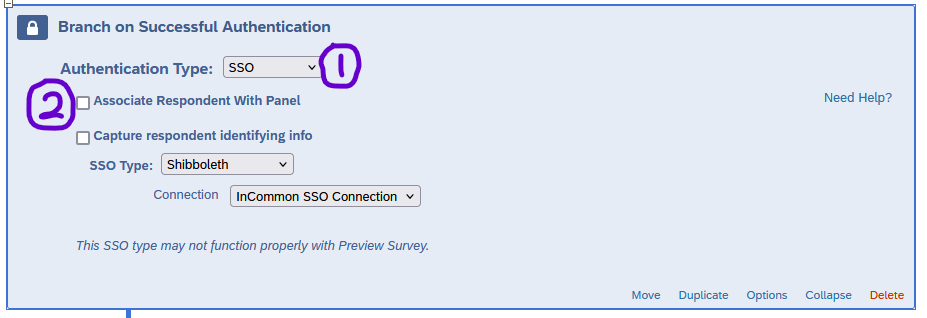
Set up the Authenticator using the following settings:
- Set the Authentication Type as “SSO”
- Uncheck the “Associate Respondent with Panel” checkbox
- Checking this option requires respondents to be member of a selected contact list and allows respondents to only reply once
- Only check the “Capture Respondent identifying info” checkbox if you want to record respondents’ information (name, email, etc.; see below)
- Set the SSO Type as “Shibboleth”
- Leave the Connection as the default “InCommon SSO Connection”
Move the Authenticator block to the top of the survey flow so the authentication is triggered before the survey opens. Drag all blocks you want authenticated underneath the authenticator.
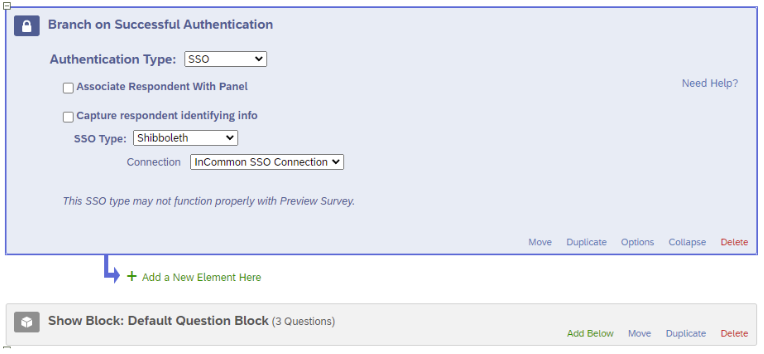
Check “Apply” at the bottom right of your screen to apply the changes.